If you’ve ever shopped for a PC for gaming, content creation, or AI, you’ve likely heard about the importance of a graphics card (GPU). But how do they work, and why are they so crucial to the performance of your computer?
To help you out, this guide covers everything you need to know about GPUs, including what they do, how they interact with other components in a PC, the main types, and more.
Graphics Card Basics and Why GPUs are Important
Let’s take a closer look at the basics and why GPUs are so crucial to the performance of a computer.
GPU Meaning and What It Is Designed to Handle
The term stands for graphics processing unit, and it’s an electronic circuit capable of handling a variety of computing tasks, from rendering graphics to visualising data to performing machine learning, among others. These are found in computers, gaming consoles, phones, smart TVs, tablets, and other electronic devices.
GPU vs Graphics Card: Why People Use Both Terms
When you’re researching computer specs and looking at graphical capabilities, you’ve likely seen both GPU and graphics cards mentioned. People often use the terms interchangeably as they’re related components in the same system.
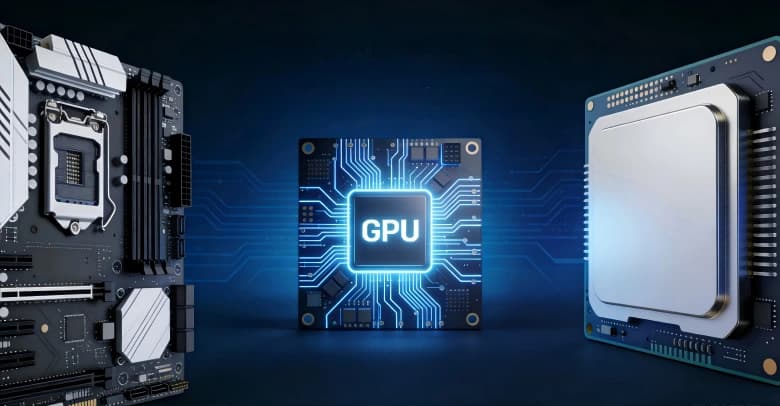
However, there’s actually a difference between the two. The graphics card refers to the entire circuit board that contains the GPU and other components, such as cooling, ports, and more. As a result, the GPU is part of a graphics card and is the component responsible for handling the complex tasks the card performs.
To simplify, think of the card as a vehicle, and the GPU as the engine that powers it.
How Does a GPU Work?
Now that you’re aware of what GPUs are, how do they actually work? Let’s take a closer look at what makes them operate and how they actually render graphics and display them on your screen.
Why Parallel Processing Makes GPUs Fast
To understand how they work, it’s crucial to first understand what parallel processing is. Parallel processing is when a GPU uses its thousands of cores to break down intensive tasks into many smaller tasks that are handled simultaneously.
It makes them fast because, instead of having to take on a huge task at once, the work is broken down and spread across numerous cores, each of which is responsible for only a small sub-task within the larger job.
So while each core is likely slower than the cores in a CPU, the sheer number of them allows for it to complete tasks faster.
How Graphics Get Rendered From a 3D Scene to Your Screen
Here’s a quick look at the steps involved in transforming 3D scene data into the 2D pixels that are displayed on your screen. The process, generally known as the graphics pipeline, involves the stages below.
- The modelling stage, where 3D objects are created and all aspects are defined, including the object’s geometry, shape, and structure. These 3D models are also manipulated within the virtual environment and put in the proper place, at the proper angle, and at the proper scale.
- The rasterisation process, which converts these 3D models into pixels and a 2D image.
- The shading and lighting stage, which adds complexity and more colours to the shapes, applies texture and effects such as shadows, reflections, and more.
- Finally, there’s the output merger stage, which brings everything together and ensures the final image seen on the screen is correct.
How Does the GPU Work With the CPU and Memory?
To help a computer operate the way we need it to, GPUs need to work hand in hand with other key components, such as the central processing unit (CPU) and random-access memory (RAM).
For best results, don’t hesitate to take some time to learn about the best CPU and GPU combos to ensure optimal performance from your computer.
What the CPU Does vs What the GPU Accelerates
Having both a high-quality CPU and GPU is important, but it’s also crucial to understand what each is responsible for. Generally, the CPU is responsible for general computing, managing the operating system, and making fast decisions.
The GPU accelerates data-heavy and intensive tasks for the CPU, so it can continue to operate the rest of the machine with optimal speed. Essentially, the CPU sends off more specialised and massive tasks or calculations to the GPU to break down and handle more quickly than the CPU could on its own.
VRAM Explained and What Happens When You Run Out
Another important thing to know about is VRAM, which stands for Video Random Access Memory. VRAM is the high-speed memory on your graphics card that stores image data for display. Because it’s located on the same card, the VRAM can send data almost instantly.
When you run out of VRAM, the computer may start using slower system RAM, which can cause performance issues and even crash your games.
What Are the Main Types of GPUs?
Let’s take a closer look at some of the main types of GPUs.
Integrated Graphics vs Dedicated Graphics
Integrated graphics are built directly into the CPU, share system RAM, and are designed to be cheaper and more energy-efficient than other types of cards.
On the other hand, dedicated graphics are separate components with their own VRAM, installed on your motherboard. These may be more expensive but generally offer higher performance for more intensive tasks.
Some companies offer both integrated and dedicated graphics, so you often have a choice when deciding which to use. For example, you can get AMD Radeon graphics either via a dedicated or integrated option.
| Feature | Integrated Graphics | Dedicated Graphics |
|---|---|---|
| Memory | Shares system RAM | Dedicated VRAM (4–24 GB+) |
| Performance | Entry to mid-level | Mid to high-end |
| Power Consumption | Low (15–45 W) | High (75–450 W) |
| Heat & Noise | Minimal, often near-silent | Higher, requires active cooling |
| Form Factor | Compact, fits mini PCs & laptops | Larger chassis required |
| Cost | Included with CPU | Significant added expense |
| Best For | Office work, streaming, light gaming, productivity | AAA gaming, 4K editing, 3D rendering, AI tasks |
Laptop GPUs and External GPU Setups
Laptop GPUs can either be integrated or dedicated, depending on the specific laptop model. Some may support dedicated GPUs, while others are restricted to the onboard integrated GPU. However, many laptop GPUs are also designed to generate less heat and use less power than those inside desktops.
External GPUs are devices that let you connect a graphics card to your computer via a high-speed port. These are great for giving your computer’s visuals a significant boost.
They also let you access the power of high-performance computing on a smaller, less powerful, and more portable device, such as a laptop or mini PC.
| Feature | Laptop GPU (Internal) | External GPU (eGPU) |
|---|---|---|
| Setup | Built-in, ready out of the box | Requires enclosure, GPU & compatible port |
| Connection | Direct PCIe to CPU | Thunderbolt 4/5 or OCuLink |
| Performance | Full bandwidth, no bottleneck | 10–30% loss via Thunderbolt; near-native via OCuLink |
| Upgradability | Fixed, soldered to mainboard | Swap GPU anytime |
| Portability | Fully mobile | Desk-bound, mains power required |
| Power Draw | 35–175 W (TGP-limited) | Up to 450 W (desktop-class) |
| Cost | Included in laptop price | Enclosure (£200–£400) + GPU separately |
| Thermal Performance | Constrained by chassis cooling | Desktop-grade airflow & cooling |
| Best For | On-the-go gaming, mobile creators, all-in-one use | Ultrabook users wanting desktop power at home |
OCuLink vs Thunderbolt — Which eGPU Connection Is Better?
OCuLink uses a direct PCIe 4.0 x4 connection, delivering up to 64 Gbps of bandwidth with minimal latency; it‘s the preferred option for enthusiasts who want desktop-class GPU performance from a compact system.
Thunderbolt 4 offers up to 40 Gbps and is widely supported across laptops and accessories, but its protocol overhead typically results in a 10-15% performance loss compared to OCuLink when paired with the same GPU.
In short, OCuLink wins on raw performance and price, while Thunderbolt wins on convenience, hot-swapping, and broader device compatibility.
For users who want true eGPU-ready hardware in a small footprint, the GEEKOM GT15 Max includes OCuLink support, allowing you to pair it with a discrete desktop GPU for serious gaming, AI workloads, or content creation without sacrificing the mini PC form factor.
| Feature | OCuLink | Thunderbolt 4 |
| Max Bandwidth | 64 Gbps (PCIe 4.0 x4) | 40 Gbps |
| Real-World GPU Performance | ~95-98% of native PCIe | ~80-85% of native PCIe |
| Latency | Very low (direct PCIe) | Higher (protocol overhead) |
| Hot-Swap Support | No (requires reboot) | Yes |
| Cable Length | Up to 1m typical | Up to 2m |
| Device Compatibility | Niche (enthusiast PCs, select mini PCs) | Broad (most modern laptops & PCs) |
| Power Delivery | No | Yes (up to 100W) |
| Typical Use Case | Maximum GPU performance | Convenience & portability |
What Are GPUs Used for Besides Gaming?
While many people think of GPUs as only being used for gaming, they also have several other use cases.
Content Creation
They’re incredibly useful for content creators, as they can help with video editing, creating images, speeding up exports, and even improving the quality and performance of live streams.
AI and Machine Learning Tasks
They’re also crucial for completing various machine learning and AI tasks. They’re beneficial for training models, processing natural language, creating images and videos, and many other uses.
However, because many AI tasks are intensive, make sure to choose one of the best graphics cards to ensure your computer can handle them.
Data Analysis
Finally, they also help with data analysis, as their many cores can quickly break down, process, and analyse large datasets in a fraction of the time it would take CPUs to do the same.
Frequently Asked Questions
Do You Need a Dedicated GPU for Everyday Use?
No, integrated GPUs are often more than enough for everyday computer use like browsing, streaming your favourite shows, doing homework, or working.
How Can I Check What GPU I Have?
If you’re using a Windows computer, you can check what you have by opening the Task Manager, clicking the Performance tab, and selecting GPU to learn more about it. You’re also able to physically inspect it to see the model name, serial number, or other information to identify it.
Can You Upgrade the GPU in a Mini PC or Laptop?
It depends. While you can add and/or upgrade in some models of mini PCs or laptops, many others don’t support this. However, even if a computer doesn’t allow for upgrading or replacement, you may be able to unlock better visuals by connecting an external GPU to the device.
What Is the Difference Between VRAM and RAM?
RAM is the short-term memory that your computer uses to temporarily store the data and information that you need immediately, while VRAM is the high-speed memory found on a GPU that stores graphical information like textures and image data for rapid access. Essentially, RAM is general-purpose memory, while VRAM is graphics-specific memory.
What’s the difference between reference and custom GPUs?
A reference GPU is the original card design released directly by NVIDIA or AMD, featuring standard clock speeds, a blower-style cooler, and the manufacturer’s baseline specifications.
A custom GPU (also called an AIB card) is built by third-party partners, who modify the reference design to deliver better cooling, higher factory-overclocked clock speeds, quieter fans, and extra features.
In short, reference cards prioritise compact size and predictable performance, while custom cards typically run cooler, faster, and quieter — usually at a slightly higher price.
What’s the difference between an RTX and a GTX card?
RTX and GTX are two generations of NVIDIA GeForce graphics cards, distinguished mainly by their support for real-time ray tracing and AI features.
GTX cards (such as the GTX 1660) use older architectures and rely on traditional rasterisation; they are suitable for 1080p gaming on a budget.
RTX cards (starting from the RTX 20 series and continuing through the RTX 40 and 50 series) include dedicated RT Cores for ray tracing and Tensor Cores that enable DLSS upscaling and frame generation.
In practice, RTX cards deliver significantly better performance, more realistic lighting, and far stronger AI capabilities than any GTX model.
PCIe 4.0 vs PCIe 5.0 — Does it matter for gaming?
For gaming, the difference between PCIe 4.0 and PCIe 5.0 is currently minimal — most modern GPUs, including the RTX 4090 and Radeon RX 7900 XTX, do not saturate even PCIe 4.0 bandwidth.
Real-world benchmarks typically show less than a 2-3% performance gap between the two standards on the same GPU.
PCIe 5.0 becomes more relevant for NVMe SSDs, AI workloads, and future high-end GPUs that may use fewer lanes (such as PCIe 5.0 x8).
Why is SLI no longer common?
SLI (Scalable Link Interface) is no longer common because modern game engines and graphics APIs such as DirectX 12 and Vulkan have shifted multi-GPU support away from the driver level to the developer level, meaning very few games actively support it.
NVIDIA officially ended SLI driver support after the RTX 3090, and AMD has similarly phased out CrossFire.
Graphics Cards Accelerate Performance for Gaming, AI, and Content Creation
Whether you’re buying a computer to play games, create content, or edit videos, a good graphics card is crucial to your success. They help you rapidly process large amounts of data at once thanks to parallel processing and work hand-in-hand with your CPU and RAM for a complete computing experience.
You can also find dedicated GPUs, external GPUs, and integrated GPUs, so there are options for every use case and budget. If you’re looking for computers that offer strong graphical performance without breaking the bank, consider browsing GEEKOM’s selection of PCs.