As soon as your hard drive is full, you cannot save any more files. It actively slows your computer down, crashes it, and prevents Windows from installing important updates. In this article, we outline useful steps on how to free up disk space without deleting anything you need, whether your storage bar has turned red or you just want to keep your system running at its best.
Why Disk Space Matters for Windows Performance
Microsoft Windows is not a fixed OS. In the background, it writes temporary files, sets up restore points, stores browser data in cache, and records system events all the time. All of this work needs to be able to access storage to work properly. When your drive is full, the operating system has nowhere to put these working files. This makes it take longer for your computer to start up and can even cause apps to crash.
According to Microsoft’s own storage advice, a good rule of thumb is to always have at least 10–15% of your drive space free. That means keeping about 25–38 GB of free space on a 256 GB SSD.
Signs Your Computer Is Running Out of Storage
It is not always necessary to check the storage settings to understand what is wrong. Some common warning signs are:
- Windows displays a “Low Disk Space” notification in the taskbar.
- Programs take noticeably longer to open or respond.
- Your computer struggles to install Windows updates, citing insufficient space.
- File save operations fail unexpectedly.
- The system freezes or crashes more frequently than usual.
If you recognise any of these signs, the sections that follow will show you how to treat them.
What Is Taking Up Space on Your Computer?
It helps to know what is actually taking up space on your hard drive before you delete anything. One built-in breakdown tool is in both Windows 10 and Windows 11. It is located at Settings > System > Storage. It shows a map of your drive with sections for Apps & Features, Temporary Files, Documents, Videos, and Other.
Most of the time, the main offenders are the following:
- Temporary files and system caches, which Windows accumulates over time and rarely cleans automatically.
- Installed applications that you downloaded once and never opened again.
- The Downloads folder tends to silently accumulate large installers and ZIP archives.
- Windows Update files, which are kept as backups long after the update has been applied.
- Duplicate photos and videos, particularly if you back up your phone to your computer regularly.
You can start setting things up in the right places once you know where most of your storage is going.
7 Ways to Clear and Free Up Disk Space on Windows
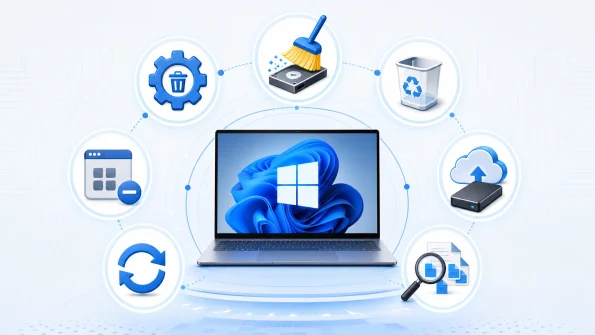
1. Delete Temporary Files Using Storage Settings
By default, Windows creates a lot of temporary files like browser caches, installation leftovers, and error logs that are not used again. Navigate to Settings > System > Storage > Temporary Files to quickly get rid of them. There will be a list of files on your drive that Windows thinks are safe to delete. Put checks next to things like Delivery Optimisation Files, Windows Update Cleanup, and Temporary Internet Files, and then click Remove Files.
2. Run the Built-In Disk Cleanup Tool
One of the best ways to get rid of system junk is to use Disk Cleanup, which has been a part of Windows for many years. In the search bar on the Start menu, type “Disk Cleanup” and then choose the app. It will figure out how much space you can get back after you choose your main drive (which is usually C:). Old Windows installation backups can take up several gigabytes of space, so clicking ‘Clean up system files’ will get rid of them as well.
3. Empty the Recycle Bin
When you delete a file in Windows, it does not actually get deleted from the drive; it just gets moved to the Recycle Bin, where it takes up space again. To get rid of everything in the Recycle Bin for good, right-click on the icon on your desktop and choose ‘Empty Recycle Bin’. Windows does not actually delete a file; instead, it moves it to the Recycle Bin, where it stays and takes up space. Click the Recycle Bin icon on your desktop, then right-click and choose “Empty Recycle Bin”. This will get rid of everything in the bin for good.
4. Uninstall Unused Programs and Applications
Most computers get a bunch of programs that were installed once and never used again over time. Sort the list by size by going to Settings > Apps > Installed Apps (or Apps & Features on Windows 10). Pay special attention to large programs, old games, and bloatware that came with your computer from the manufacturer that you do not need anymore.
5. Move Files to an External Drive or Cloud Storage
Not every file needs to be on your main drive. Big folders of photos, videos, and old documents are great candidates for moving to an external hard drive or a cloud storage service. Once you are sure the files are safe somewhere else, you can delete the local copies to make a lot of space. Moving big folders of photos, videos, and old files to an external hard drive or a cloud storage service is a great idea. When you are sure the files are safe somewhere else, you can delete the local copies to make a lot of space.
6. Enable Storage Sense for Automatic Maintenance
You can set Storage Sense to run daily, weekly, or monthly and configure it to delete temporary files and empty the recycle bin after a certain number of days. To turn it on, go to Settings > System > Storage and toggle Storage Sense to the “On” position. To make it work, go to Settings > System > Storage and flip the switch for Storage Sense to “On”. Then you can set it to run daily, weekly, or monthly and automatically clear the Downloads folder after a certain number of days.
7. Find and Remove Large or Duplicate Files
Although Windows does not come with a tool for finding duplicate files, you can sort files by size on the Storage Settings page. Finding hidden space hogs can be done by going to Settings > System > Storage > Other and then browsing through the large file categories. While free third-party tools like WinDirStat do a more thorough scan, they also make it easy to find big files that you may have forgotten about by showing you a map of your whole drive.
How to Prevent Disk Space from Filling Up Again
Making space for things is only half the battle. Your drive will fill up again in a few weeks if you do not change some habits. Using Storage Sense (explained above) is the best long-term solution because it lets Windows do regular cleanup for you. Besides that, clean out your Downloads folder once a month by deleting installers and archives you do not need. When you install new software, pay attention to how big the installation file is and stay away from bundled apps that get added without your permission.
When Low Storage Is a Hardware Limitation
Sometimes it is not how you use your wrong computer; it is the drive. Many entry-level laptops and older desktops come with 128 GB or 256 GB SSDs, which fill up quickly when you install a lot of apps and save media files in high resolution. If you are always running low even after regular cleanups, your storage space may not be big enough for the work you are doing now.
You have two choices: either upgrade the internal SSD if your device supports it, or get a new machine that comes with a bigger drive from the start. With a 512 GB or 1 TB NVMe SSD, a modern Mini PC or small form factor pc can handle years of normal use without needing constant management.
Frequently Asked Questions
What Is the Best Thing To Delete To Free up Storage?
The safest and most important things to delete first are temporary files and files that clean up after Windows Update. Most of the time, they can free up several gigabytes of space without affecting your files or programs.
Is It a Good Idea To Run Disk Cleanup?
Absolutely. Disk Cleanup is a safe tool that comes with Windows that gets rid of files that the OS has identified as being unnecessary. As part of routine upkeep, you should run it every couple of months.
How Much Free Space Should I Keep on My Computer?
You should try to keep at least 10–15% of your drive’s space free. For example, on a 256 GB drive, that means leaving at least 25 GB free so Windows can work properly. Because Windows needs at least 25 GB of free space on a 256 GB drive, this means keeping the drive empty.
Does Low Disk Space Slow Down a Computer?
Of course. For Windows to make virtual memory (the page file), write temporary working files, and install updates, it needs free space on the drive. When the amount of available space gets too low, all of these processes are slowed down or become unstable.
Running Out of Space Can Signal It’s Time for an Upgrade
On most Windows computers, you can get back a surprising amount of space by getting rid of temporary files, old programs, and Storage Sense. But if you have to do this every couple of weeks just to keep the system running, the problem is probably a drive that is too small for modern use. No amount of cleaning up can get rid of a capacity limit for good.
If your current computer is holding you back, you might want to think about getting a new one that can do more. Check out the different GEEKOM Mini PCs. These are small but powerful desktops that come with lots of NVMe SSD storage, fast processors, and enough space for your work.