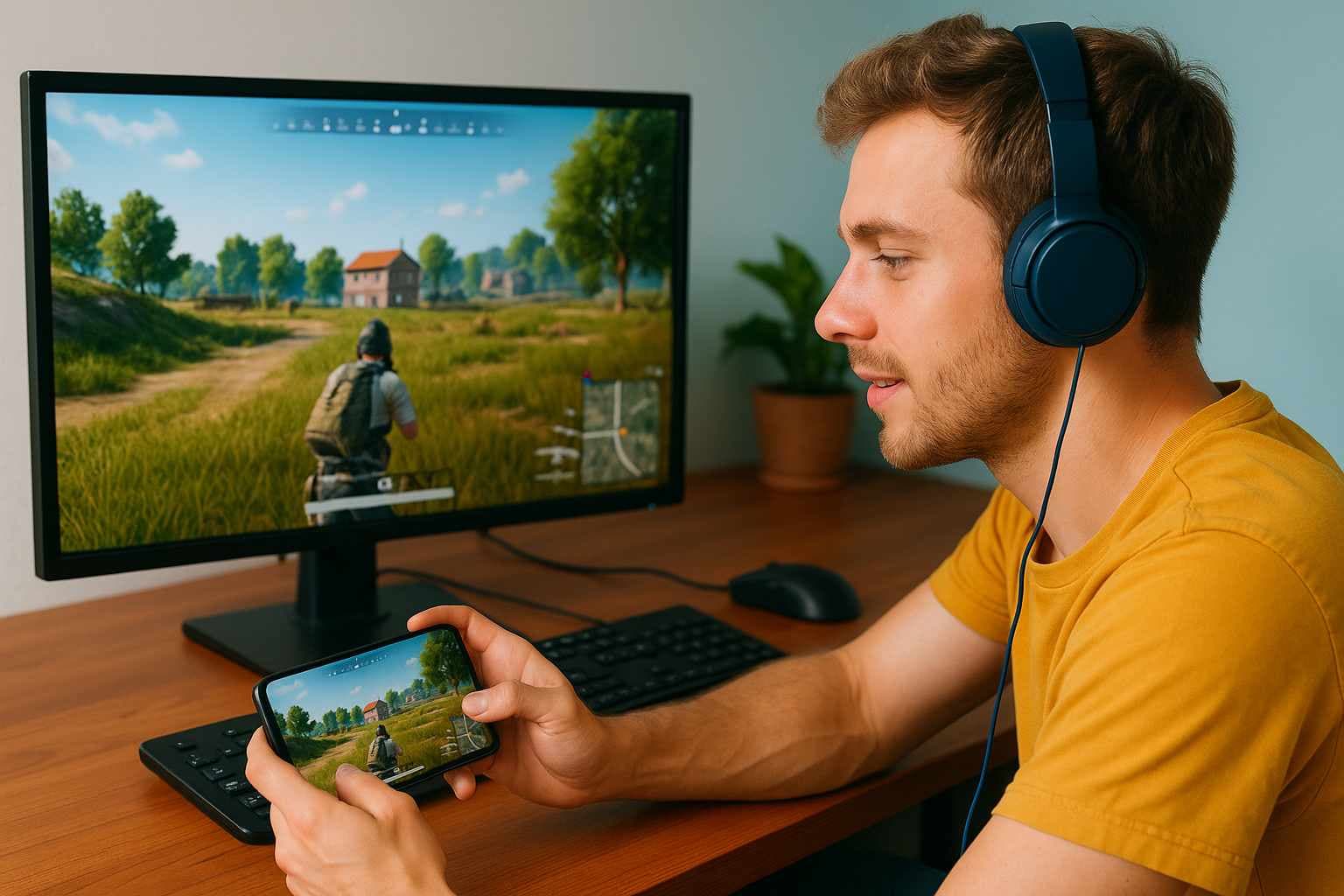
The video game industry hit some rough patches in recent years, but mobile gaming? It’s absolutely exploding. We’re talking about 2.5 billion people worldwide already playing mobile games. And before you roll your eyes thinking “Candy Crush Saga” – think again.
Millions of people play games like Roblox, Genshin Impact, Honkai: Star Rail, Call of Duty: Mobile, and PUBG Mobile. These aren’t just simple games—they’re complex, competitive, and demanding. Extremely difficult shooters and role-playing games quickly push your smartphone to its limits, especially if it has an older or smaller screen.
Here’s the good news: you can play all your mobile games on PC. Bigger screen, precise controls, way more power under the hood. Don’t know how to make this happen? We’ve got you covered.
Options for Playing Mobile Games on Windows Mini PC
Getting mobile games running on a mini PC isn’t rocket science. You can’t just flip a switch and change screens, but a few simple tricks will have you up and running in minutes. Your best bets are Android emulators, Windows subsystems, native PC versions, and cloud streaming.
1. Android Emulators for PC (like BlueStacks)
When people want to play mobile games on Windows, most of them use Android emulators. With these programs, you can play almost any mobile game on your computer.
With an emulator, you can create a virtual Android device on your PC. Almost every mobile game is available once that’s up and running. Everyone talks about BlueStacks, LDPlayer, and NoxPlayer.
Before you download anything, here’s what you should know about each:
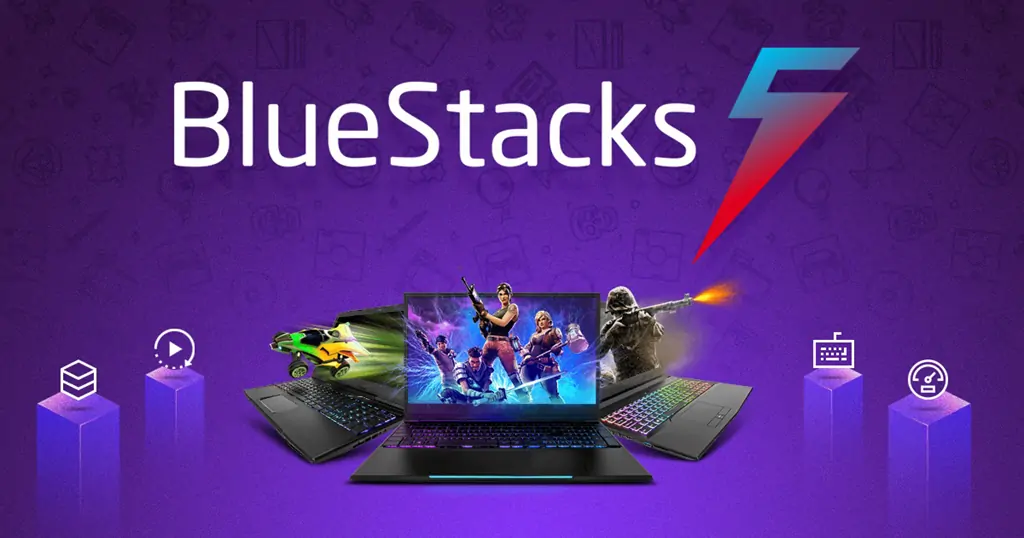
This one’s probably the most popular because it’s dead simple to set up. BlueStacks is highly versatile and easy to set up. You can run multiple mobile games at once, and it won’t drain your PC’s battery like crazy.
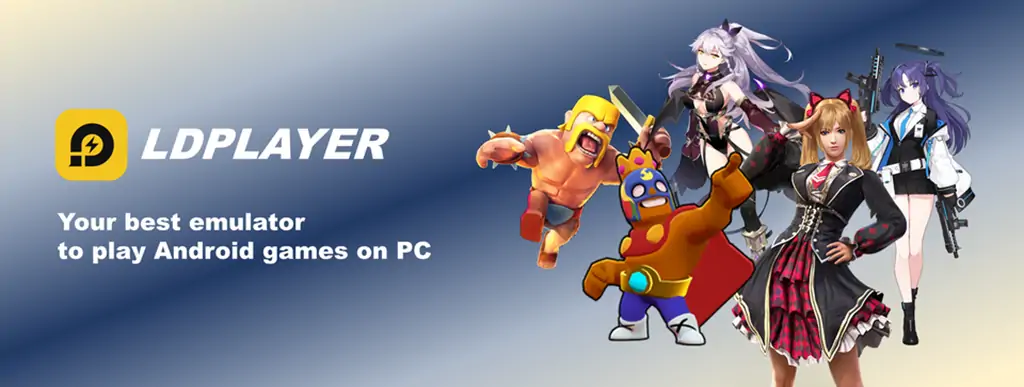
Another fan favourite, especially with its newest version, LDPlayer 9. This emulator is built for people who want serious performance. If you’re into mobile shooters and RPGs, this free option really shines.
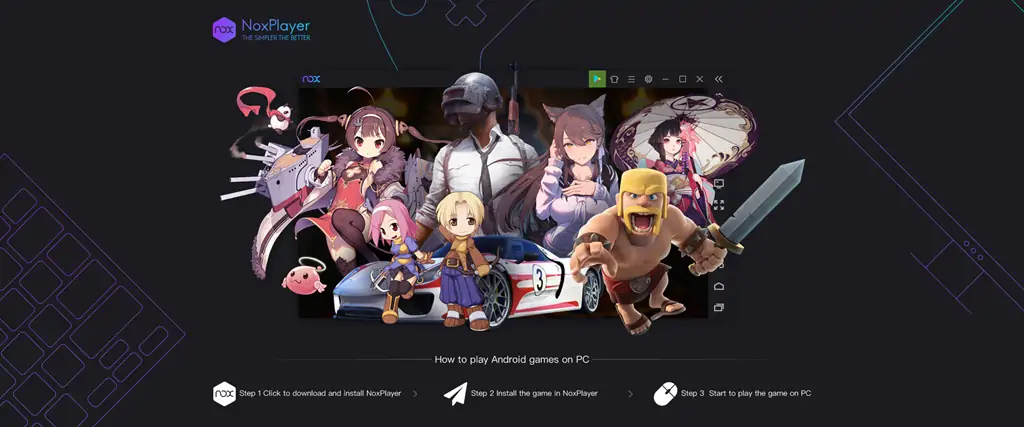
Another performance-focused choice that handles demanding games like Call of Duty: Mobile or Genshin Impact without breaking a sweat. The Multi-Instance and Multi-Drive features let you run several games simultaneously or multiple sessions of the same game.
2. Streaming via Cloud Gaming (NVIDIA GeForce NOW)
Remember Windows Subsystem for Android (WSA)? Yeah, that’s history as of last year. But don’t worry – cloud gaming services are still around to get your mobile games onto Windows PCs.
Cloud gaming works like this: the game runs on a server somewhere in a data centre, and you get the video streamed to your screen. Your button presses go back to the server and get executed in the game. All of this happens in milliseconds, and the game never actually lives on your device.
Your best cloud gaming options for mobile games:
- NVIDIA GeForce NOW: Nvidia’s service lets you connect accounts from popular game stores and stream games without any downloads across different devices. You won’t find Play Store games here, but you will find titles from other stores like Epic Games.
- Xbox Cloud Gaming & PlayStation Plus: These are actually more popular than GeForce NOW. Both unlock through premium memberships. Just keep in mind – these mainly work in the PC → smartphone direction.
- BlueStacksX: Can’t find your favourite games elsewhere? BlueStacks offers a cloud gaming service called “BlueStacksX” alongside their emulator – no download required. It’s still pretty new, but gets regular updates.
3. Native PC Versions of Android Games (Google Play Games Beta)
Google Play Games Beta makes playing mobile games on PC surprisingly straightforward. It’s basically a PC-friendly version of the Google Play Store that supports adapted versions of popular mobile games.
Getting your favourite Play Store games running on PC is simple: download Google Play Games Beta, fire it up, find your game in the store, and install it. Your progress syncs with the mobile version through your Google account.
Even though it’s still in beta, Google Play Games Beta already includes plenty of exciting games:
- Genshin Impact
- Clash Royale
- Clash of Clans
- Mobile Legends: Bang Bang
- Rise of Kingdoms: Lost Crusade
- Top Eleven 2025 Football Manager
- Asphalt 8
- Delta Force
- Harry Potter: Hogwarts Mystery
- Gacha Life
- plus many more
Technical Requirements for Smooth Mobile Gaming on PC
Cloud gaming services don’t ask much from your PC, but Android emulators and Google Play Games Beta have some minimum requirements you’ll need to meet.
Want to play mobile games on PC? Your gaming setup should have at least:
- Windows 10 or newer
- 10 GB of free storage space
- Graphics card at Intel UHD Graphics 630 level or better
- Processor with 4 physical CPU cores
- 8 GB of RAM
For more demanding mobile shooters or RPGs, we’d actually recommend bumping up to 16 GB of RAM to keep everything running smoothly. You should also check that your monitor can handle Full HD or higher resolution. Gaming controller compatibility and fan management matter too, especially during those marathon gaming sessions.
If your current PC doesn’t cut it, you might need to consider a new gaming rig. But before you drop serious cash or clear space for a massive gaming tower, mini PCs might be worth a look.
Mini PCs like the ones from GEEKOM work great for mobile games, cost way less than traditional gaming PCs, and tuck neatly behind your monitor. More on that coming up.
GEEKOM Mini PCs as the Ideal Platform for Mobile Gaming on Windows
GEEKOM is a Taiwanese PC manufacturer that’s been around since the 1980s and started making its popular mini PCs in the 2000s. They’ve grown into a global player with European offices too. GEEKOM Mini PCs focus on high performance, compact size, and solid value – the GEEKOM IT12 being a perfect example.
The GEEKOM IT12 Mini PC hits the sweet spot for anyone wanting a compact mobile gaming solution. Despite measuring just 117 x 112 x 45.6 mm and sipping only 28W-35W of power on average, this little machine packs a serious punch.
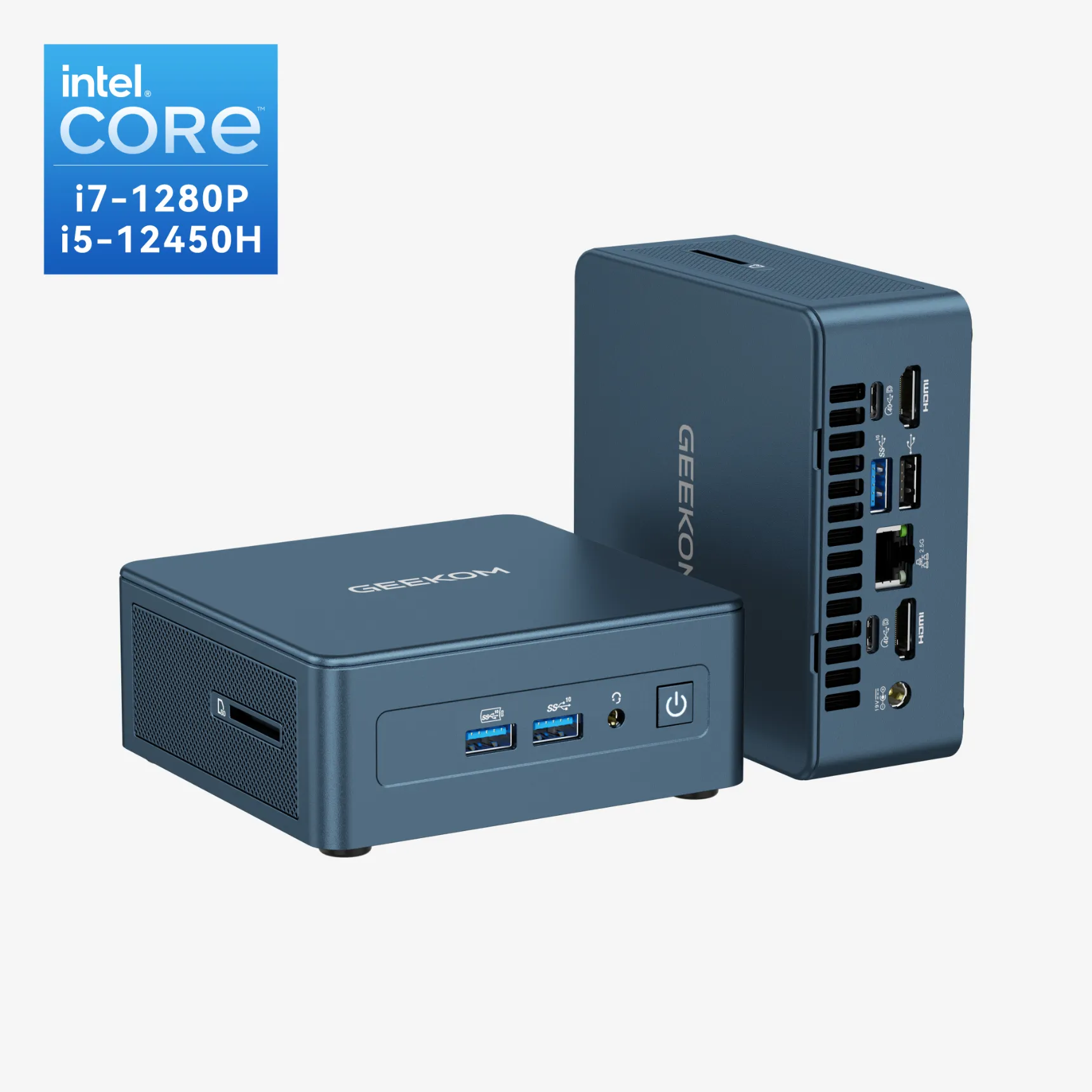
- Intel® Core™ i7-1280P or Intel® Core™ i5-12450H
- Intel® Iris® Xe Graphics
- Supports 3 hard drive expansion (NVMe+SSD+HDD), up to 5 TB storage, combining high speed and large capacity, up to 64GB
- Rich interfaces: 6 USB ports (including 2 × USB4 ports), SD card reader, and Kensington Lock, worry-free expansion
- 2.5G Ethernet, Bluetooth 5.2 and Wi-Fi 6E
- Pre-installed Windows 11 Pro & 3-Year Quality Support
Why the GEEKOM IT12 Could Be Your Perfect Match:
- Energy Efficient: The GEEKOM IT12 Mini PC uses just 28W – 35W on average, making it ideal for long gaming sessions without raising your electricity bill.
- Tiny Footprint: At 117 x 112 x 45.6 mm, this thing fits anywhere – even when you’re convinced you don’t have space.
- Connection Flexibility: Plenty of USB, HDMI, headphone, and LAN ports mean you can customise this gaming PC exactly how you want it.
- Mobile Game Ready: BlueStacks Android emulator and Google Play Games Beta run like butter on the GEEKOM IT12, bringing every mobile game to your PC.
- Great Bang for Your Buck: With all this performance, the GEEKOM IT12 must cost a fortune, right? Wrong. You can snag the basic configuration for just £379 right now.
Wrapping Up
Mobile gaming has never been bigger. With increasingly complex titles like PUBG Mobile, Call of Duty: Mobile, and Genshin Impact raising the bar, you need better hardware to keep up – bigger screens, better performance, and proper gaming gear.
The GEEKOM IT12 brings your mobile games to the big screen while saving precious desk space. GEEKOM Mini PCs slide into any gaming setup, no matter how cramped things get. Best of all, you get impressive performance in a compact size. Try the GEEKOM IT12 yourself with their 30-day return and exchange policy.
FAQs
How can you play iPhone mobile games on PC?
Want to play iPhone games on PC? AirPlay is your easiest bet, though it only mirrors the screen – you’ll still control everything on your iPhone. You can also try cloud gaming platforms through Safari to get mobile games running on a PC.
Which emulator works best for PC?
BlueStacks takes the crown as the most popular Android emulator for PC. It’s got a huge game selection, tons of features, and the setup couldn’t be simpler. LDPlayer and NoxPlayer are solid alternatives that many people swear by.
Can I play my mobile games on my PC?
Absolutely. You just need an Android emulator, a cloud gaming service, or Google Play Games Beta. Any of these will get your mobile games running directly on your PC.